See it in the app
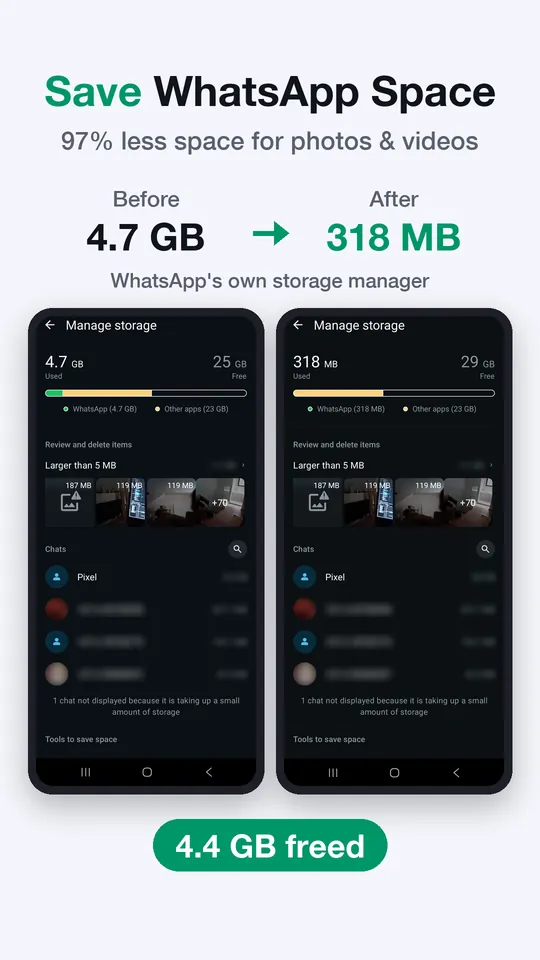
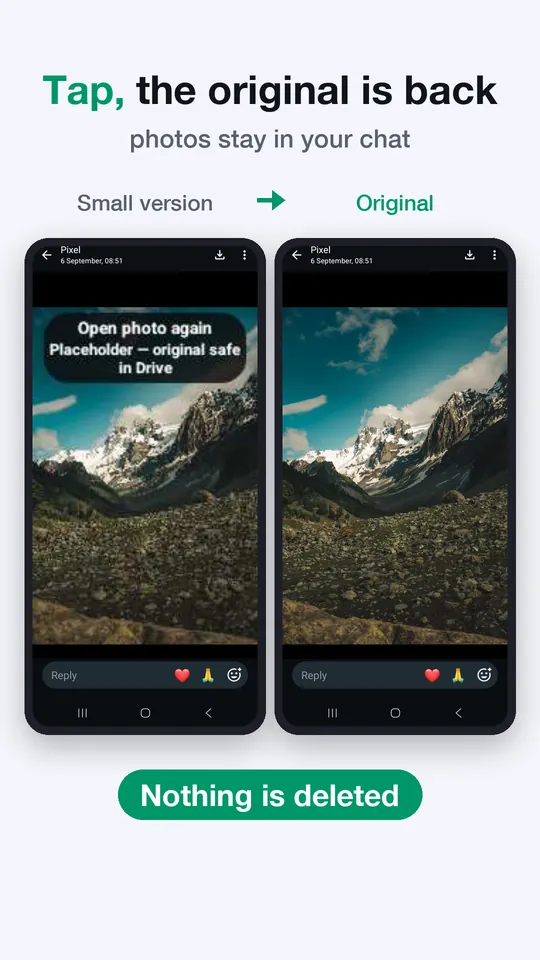
WhatsApp storage full? Space Saver frees up to 97% of the space your WhatsApp photos and videos take on Android, without deleting a single one. The original goes to your own Google Drive and a small version stays in the chat. Tap it and the original is back.
Get it free on Google PlayWorks while you sleep. Free forever.
Every other app deletes your WhatsApp photos and videos from your chats and your phone. Space Saver is the only one that doesn't — and still frees up to 97% of the space they take. Magic.
| Cleaners | Photo apps | Space Saver | |
|---|---|---|---|
| Frees up space | ✅ | ✅ | ✅ |
| Photos not deleted | ❌ | ✅ | ✅ |
| Still in your chats | ❌ | ❌ | ✅ |
When you free up space with a cleaner app, the file is gone. When you free up space with a photo backup app, the file leaves your chat and only lives inside that app — it cannot be put back where WhatsApp expects it.
Space Saver leaves a thumbnail at the exact same location, so WhatsApp keeps showing your media. Tap it and the original returns in full quality.
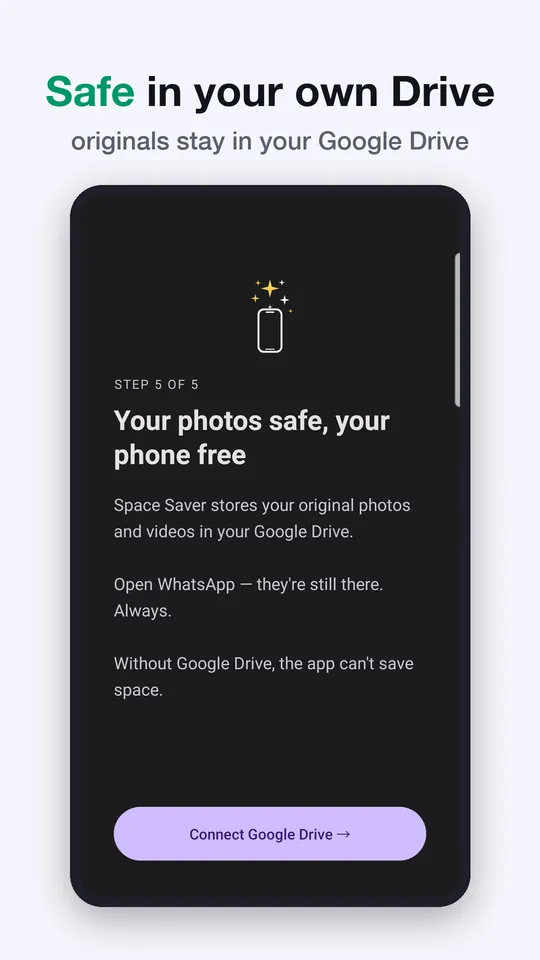
Your photo or video is copied to your own Google Drive. Nothing on your phone changes yet.
Space Saver verifies the copy arrived intact. If the upload fails, your original stays untouched.
The original is replaced by a small thumbnail at the exact same location. WhatsApp keeps showing it.
Space Saver leaves a small thumbnail at the exact same location, so WhatsApp keeps showing your media. Nothing disappears from your conversations.
Tap any thumbnail and the full-quality file returns from your Drive in seconds.
Files go straight from your phone to your own Google Drive — the same Drive you already use. Space Saver has no servers and no database, so there is nothing on our side to look at.
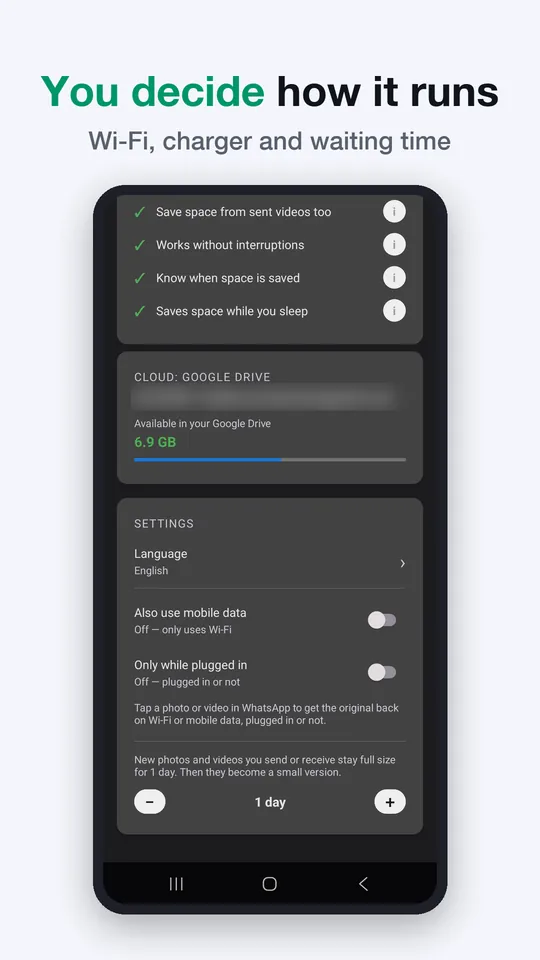
A grace period keeps recent media on your phone before anything moves. You decide how long.
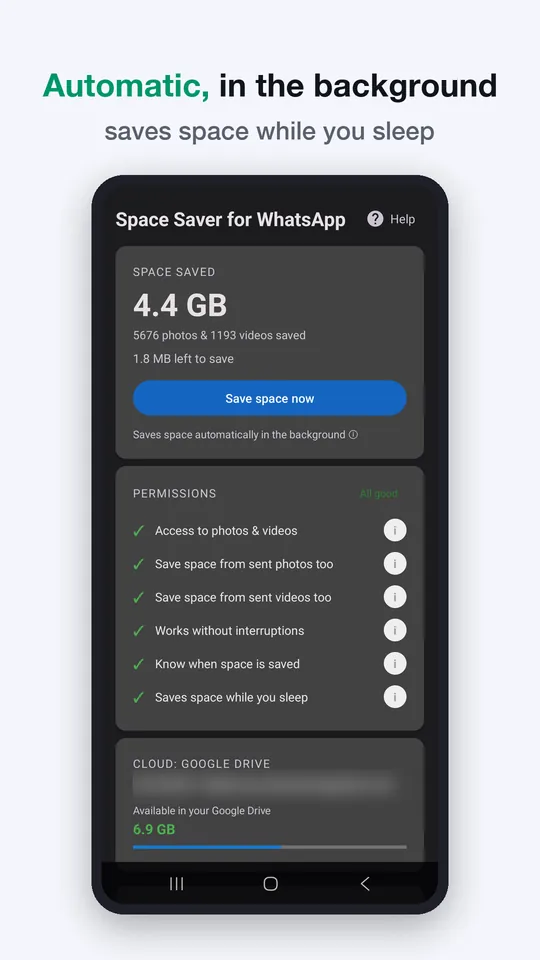
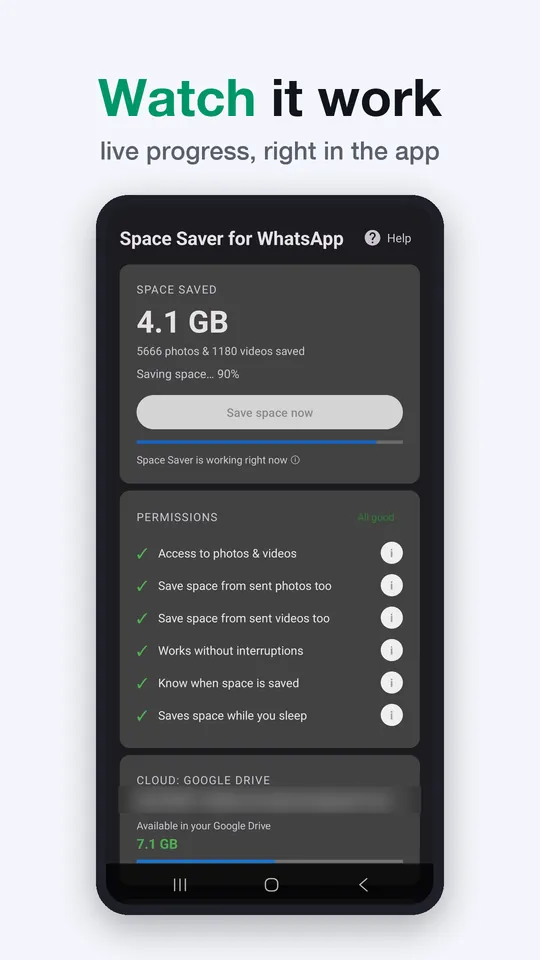
Don't want to wait for the schedule? Tap Save space now and your WhatsApp storage is freed up right away.
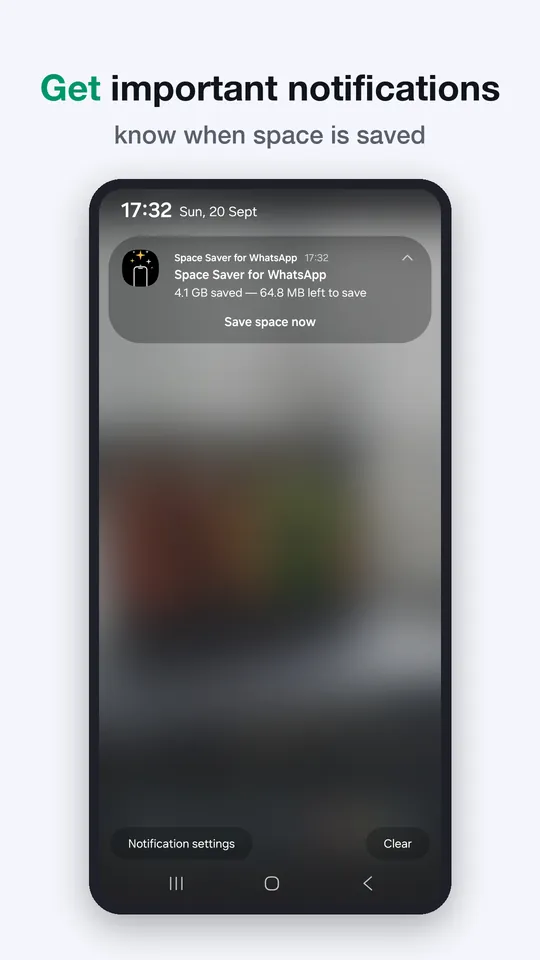
Space Saver checks for new media several times a day. You never have to open the app.
Turn this on and Space Saver never touches your mobile data, and only runs while your phone is charging.
Both are supported, each with its own folder in your Drive. Works on Android 10 and up.
Your WhatsApp number is tied to a single Google Drive account. Media from different numbers never mixes.
For Android 10 and newer. Set it up once, and it works while you sleep.

Android only — Space Saver can't work on iPhone.
You want the storage back, but you want to tap the photo and download it in full quality again. WhatsApp can't do this. There is a way — and here's why almost everyone says it's impossible.
You deleted WhatsApp photos and videos but your storage number didn't move. Here are the four real causes and how to check each one.
Space Saver is an Android app that frees up WhatsApp storage without deleting photos. Originals go to your own Google Drive; a small version stays in the chat.
Most WhatsApp cleaners free up storage by deleting media. Space Saver copies it to your own Google Drive, checks it, then leaves a small version in the chat.
Space Saver does not use All files access. Here is every permission the app requests, what each one does, and how to verify the list yourself.
WhatsApp chat backup, Google Photos, and Space Saver all put WhatsApp media in Google Drive. They work very differently. Here is what each one actually does.
WhatsApp photos gone after a cleaner app, a new phone, or a failed backup? Here is what is actually recoverable, and what is not.
WhatsApp storage full on Android? Here are the five real options, what each one costs you, and how to free up space without losing your photos.
Space Saver works on files in a folder. It is not a plugin, it cannot read your chats, and it cannot see anything you do inside WhatsApp — which is also why it never needs All files access. Every permission it asks for, and why.
How the app works, what it touches and what it never touches — written out in public on GitHub.
Space Saver uses the drive.file scope. It can only see files it created itself — your other Drive files are off limits at the API level, not by promise.
Files go from your phone straight to your own Google Drive. Nothing passes through us, so there is nothing for us to look at.
Yes: Space Saver for WhatsApp, for Android. It works like a WhatsApp cleaner, except it deletes nothing. It frees up to 97% of the space your WhatsApp photos and videos take. The original goes to your own Google Drive and a small version stays in the chat. Tap it and the original comes back, so nothing disappears from your conversations.
Yes. Space Saver moves your photos and videos to your Google Drive and leaves a small placeholder on your phone — a 3 MB photo becomes about 5 KB. Your chats stay exactly the same.
To your Google Drive. It moves — it doesn't vanish, and that's worth being straight about. If your WhatsApp photos and videos take up 30 GB on your phone, they still take up roughly 30 GB once they're in Drive. A free Google account gives you 15 GB, shared across Drive, Gmail and Photos. So Space Saver frees up your phone, not your Drive. If your media doesn't fit, you'll need to clear some Drive space or upgrade your Google One storage. If Drive runs out along the way, Space Saver pauses and tells you, then picks up again once there's room.
Because WhatsApp keeps copies in more than one place: the Media folder, the .Shared folder, the databases and the cache. Deleting from your gallery only touches one of them. And deleting inside WhatsApp itself removes the photo from the chat for good. Space Saver does the opposite: the file leaves your phone, but stays visible in the conversation. Space Saver works on your WhatsApp photo and video folders, including the media you sent yourself. It leaves .Shared, Status media, the databases and the cache alone — so if you're counting megabytes, those aren't part of what it frees up.
No. It never asks for All files access (MANAGE_EXTERNAL_STORAGE), the permission that would let an app read everything on your phone. Instead you grant it access to your WhatsApp media folders yourself, in Android's own folder picker, and you can withdraw that at any time. Every permission it asks for, and why.
No, and this is the part people most often get wrong. Space Saver is not a plugin, it cannot read your chats, and it cannot see what you tap inside WhatsApp — no app can do that. What it works on is files in a folder. WhatsApp happens to be the app that put them there, and the app that opens them again when you view a photo, but Space Saver only ever deals with the file. It keeps an eye on the ones it has replaced, and when something opens one, that's its cue to fetch the original from your Drive. It doesn't need to know which app did the opening, and it never talks to WhatsApp at all.
Not gone — just moved. The original stays in your Google Drive, full quality, always yours. What you see in WhatsApp is a placeholder. Tap it to get the original back anytime.
That's Space Saver working. The original is safely in your Google Drive — what you see is a small placeholder. Tap it and the full photo or video is back in a couple of moments.
Tap it in WhatsApp. Space Saver fetches the original from your Google Drive and restores it in a couple of moments. Make sure you're connected to Wi-Fi or mobile data.
Still in your Google Drive. Install Space Saver on your new phone and sign in with the same Google account. Alongside every file it moves, Space Saver keeps a small note in your own Drive recording where that file came from. That's how a fresh install works out what's yours and picks up where your old phone left off — there's nothing to transfer by hand. And throughout all of it, your media stays reachable in the Drive app, whether or not the new phone is set up yet.
Yes. Your files go directly from your phone to your own Google Drive — not our servers. We have no servers and no database, so there is nothing on our side that could see them. They sit in your own Drive, under your own Google account.
There's no profile of you anywhere — we have no server for your activity to reach. The app does keep a technical report of its own work, but that stays on your phone: it exists to solve one problem on one phone, and it moves only when you send it with a support message. Crashes are the exception — those go to Firebase Crashlytics, Google's standard crash tool, so we can fix the bug. Your files and WhatsApp media are in neither. Full details in the Privacy Policy.
Open Space Saver, tap Help, and scroll to "Still stuck?" — tell us what happened there. A technical report goes along with your message, which shows us what happened on your phone and usually gets us straight to the cause; leave it out and only your message is sent. Rather use email? Write to [email protected]. What's in that report.
Never. Space Saver moves your files from your phone to your own Google Drive. We have no servers and no database with your data. The app doesn't know who you are.
It runs by itself. Once set up, Space Saver works in the background several times a day. No manual steps. New WhatsApp media gets moved automatically.
Some phones are strict about stopping apps they think you aren't using — Xiaomi, Samsung, Oppo and OnePlus are the usual ones. Space Saver asks you to allow it to keep running when you first set it up. If you skipped that step, go to Settings → Apps → Space Saver → Battery and allow it to run unrestricted. It carries on from wherever it stopped.
Space Saver pauses and notifies you. Clear some Drive space or upgrade your Google One storage, and it picks up right where it left off.
Then you lose access to the originals, because that's where they live — the same as anything else you keep in Drive. It's worth saying plainly, because Space Saver moves files you might only have one copy of. Keep your account's recovery details up to date. The placeholders stay on your phone either way, but a placeholder isn't the full-quality file.
You'll see the placeholder in WhatsApp, but you can't restore the full file without internet — it's in your Google Drive and needs a connection. Connect to Wi-Fi or mobile data and tap to restore.
Your original files stay in your Google Drive, and you can open them anytime through the Drive app — with or without Space Saver installed. Your chats are a separate matter. The placeholders stay exactly where they are, and once the app is gone there's nothing left to swap them back for the originals. So if you want your conversations looking the way they did, bring your media back first and uninstall afterwards.
Yes — both are fully supported. Each gets its own folder in your Google Drive. Everything stays separate and organized.
No — one Google Drive account links to one WhatsApp number. Your partner, kids, or anyone else each need their own Drive account.